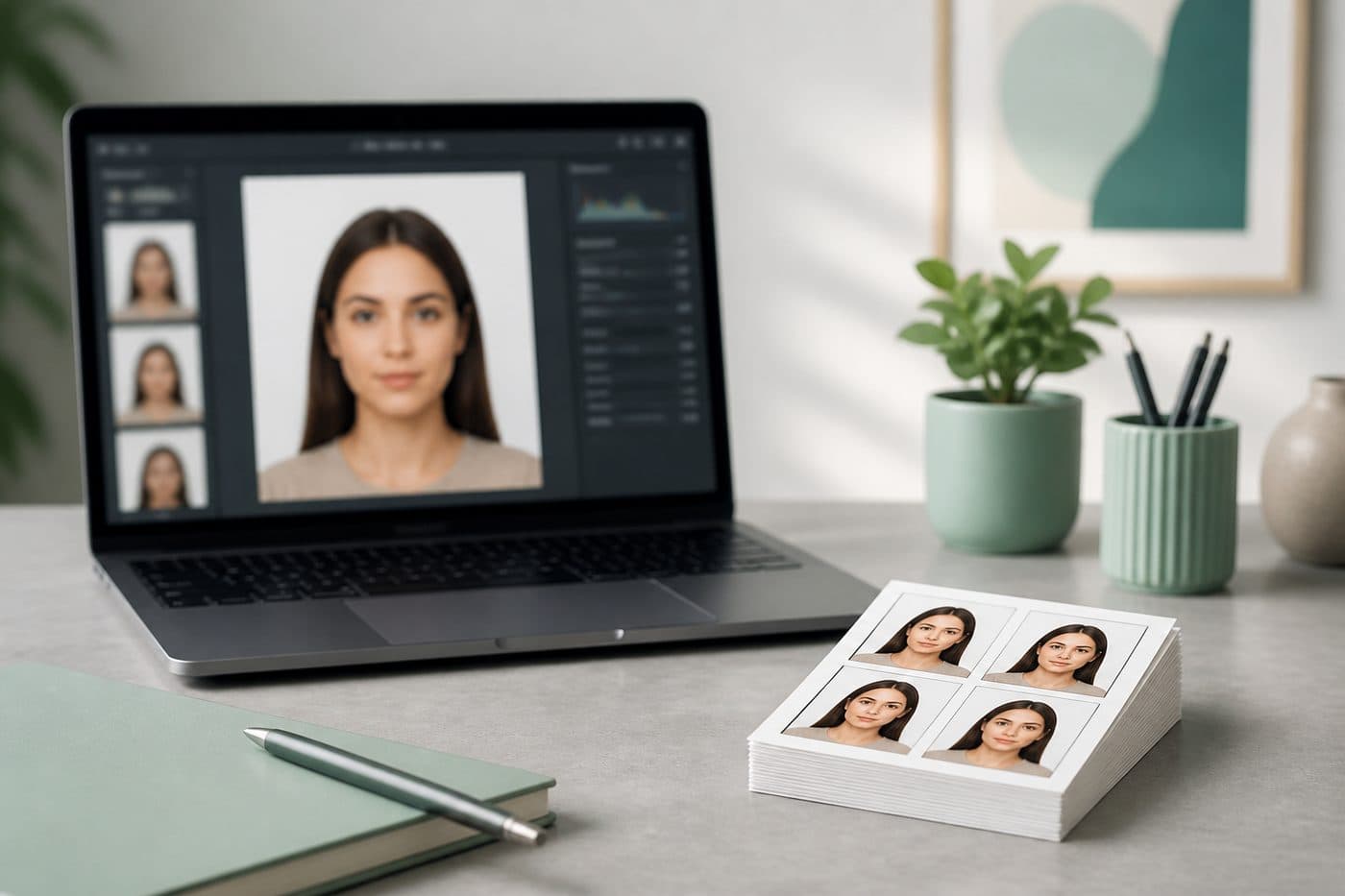
How to Print Passport Photos at Home on a 4×6 Sheet (2026)
Layout compliant 2×2 or 35×45 photos on standard 4×6 / 10×15 paper — printer settings that keep the real millimetre size.
Print sheet ≠ photo size
The document photo is still 2×2 in, 35×45 mm, 50×60 mm, etc. A 4×6 inch (10×15 cm) sheet is only the paper you print several copies on. Get the single photo right first; then tile it.
Use our AI-powered United States Passport Photo Tool to auto-crop your image in 3 seconds.
Wrong order (random grid first, hope the size holds) is the most common home-print failure.
Official photo requirements
- Document size applied
- Face alignment checked
- Background prepared
Size
2 × 2 in
Background
White
Digital photo
602 × 602 px


Step-by-step
- 1
Create a compliant digital photo for your country in FotoPass.
- 2
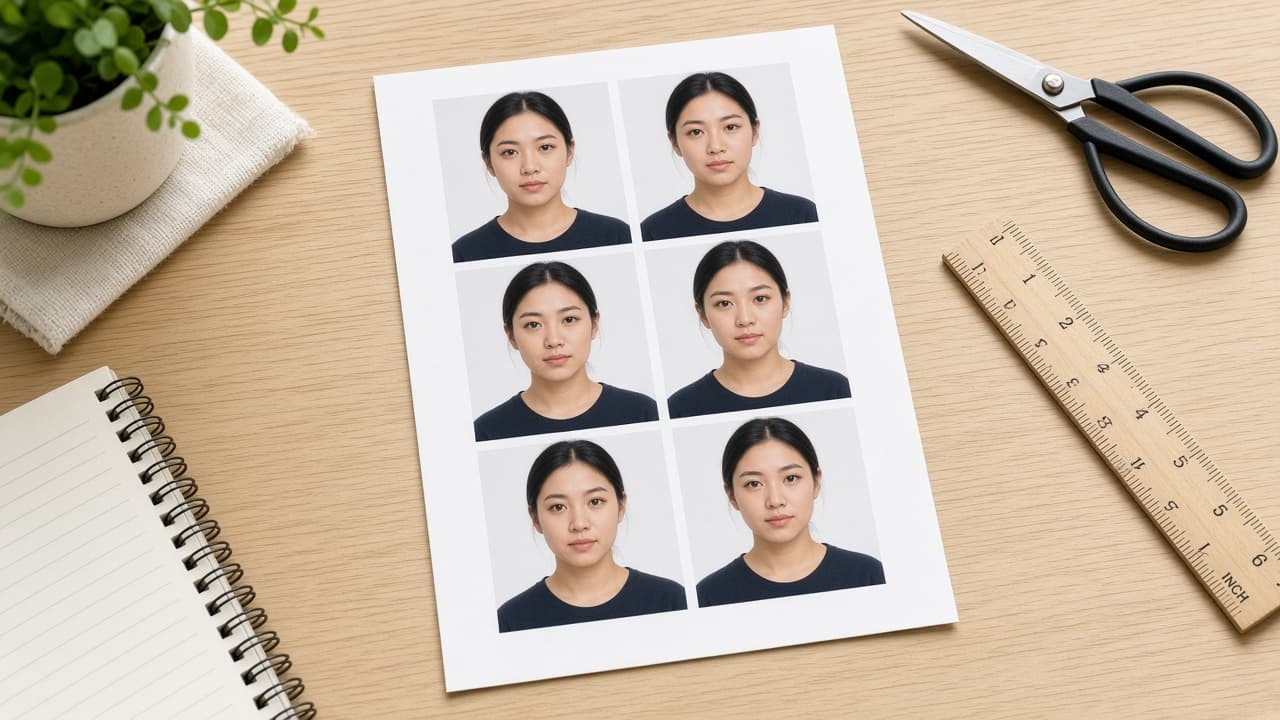
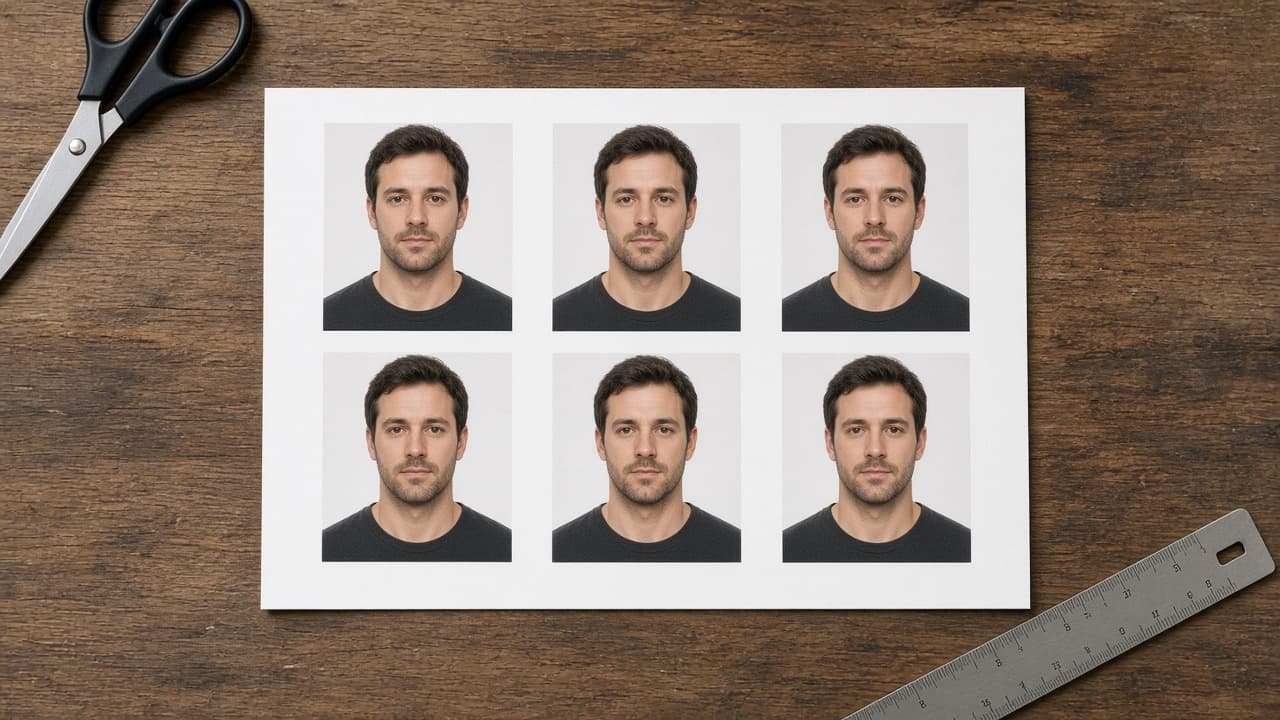
Download the print sheet (multiple copies with cut guides).
- 3
Use photo paper (matte is safer for many desks than glossy glare).
- 4
Printer: paper size 4×6 / 10×15, scale 100% / actual size — never “fit to page.”
- 5
Print one test page, measure one photo with a ruler, then print the rest.
- 6
Cut on the lines; don’t trim into the head.
If the size is off, turn off fit-to-page / borderless and reprint.
Lab / drugstore tip
Upload the finished sheet as one image to CVS, Walgreens or a local lab. Uploading four separate tiny files often triggers auto-crop and wrong size.
In the preview, confirm a true 4×6 with no clipped borders.
Common print failures + FotoPass
“Fit to page” shrinks every copy. Borderless overspill cuts the chin. Soft copy from WhatsApp looks fine on screen but prints muddy. Canada and some countries need a studio stamp on the reverse — a home print alone may not be enough.
Generate your photo with the FotoPass tool, download the printable layout, and print at 100% scale. Measure once before you cut a full sheet.